Is the Esign app crashing on your iPhone, or are sideloaded apps crashing while opening that are signed with ESign? This issue affects many users. The app may close instantly or crash when opened. Because of this, IPA files fail to install.
The main reason is a revoked or expired certificate. This guide explains the issue and the correct fix in simple steps.
Why Does Esign App Crash on iPhone?
The Esign app depends on enterprise certificates. When Apple revokes a certificate, the app stops working.
Common causes include:
- Certificate revocation
- Expired enterprise profile
- Internet connection during device reboot
- DNS leak before security blocks activate
- Trusted profile removed by iOS
When this happens, Esign and all signed apps crash on launch.
Important Before You Start
Follow these rules to avoid repeat crashes:
- Use Airplane Mode before restarting the iPhone
- Disable auto-join Wi-Fi
- Do not connect mobile data during boot
- Install DNS or blocking profiles before opening Esign
Skipping these steps can result in the certificate being revoked again. You can try this to download the latest Version of the ESign iOS App.
ESign iOS IPA Installer FREE Download iOS (LATEST)
Step 1: Uninstall Esign and All Profiles
Remove old profiles completely.
Steps:
- Open Settings
- Go to General
- Tap VPN & Device Management

- Delete:
- All configuration profiles
- All enterprise apps
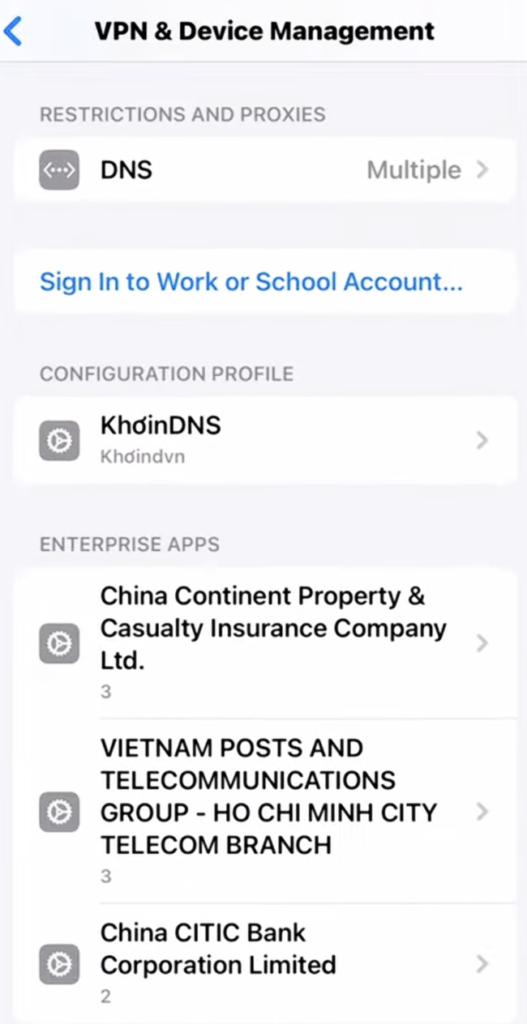
- Close Settings
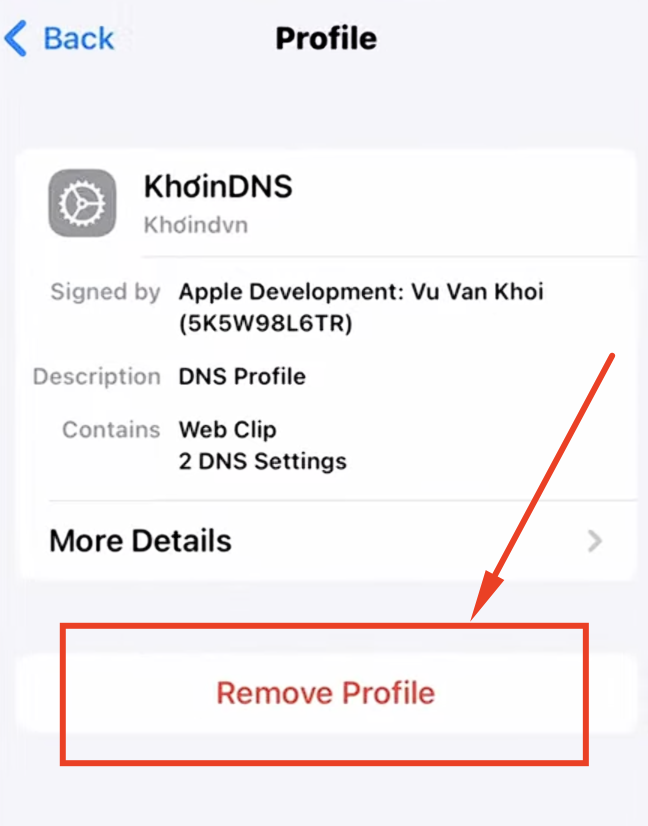
This clears revoked certificates.
Step 2: Install DNS Profile
DNS blocking helps prevent certificate checks during boot.
Steps:
- Open a web browser
- Visit: https://www.mediafire.com/file/s4k5q0xxzm72ae1/verycooldns_(1).mobileconfig/file
- Tap Download
- Open Settings
- Tap Profile Downloaded
- Select the DNS profile
- Tap Install
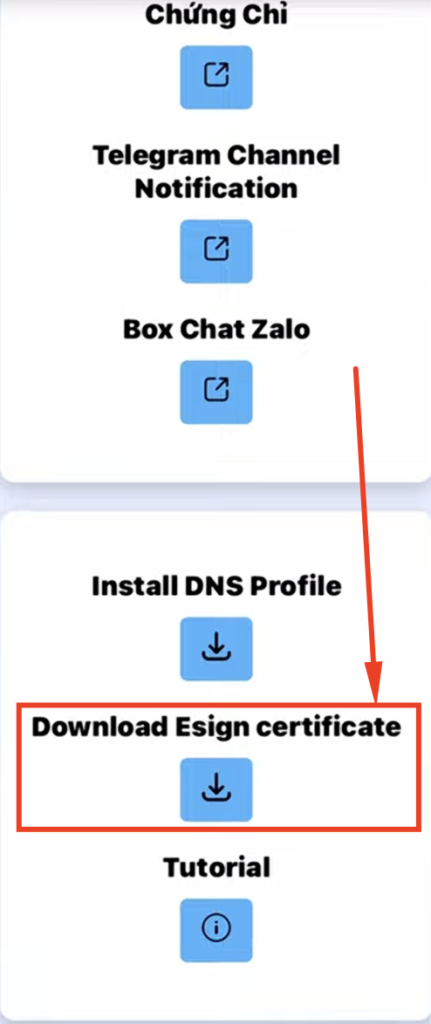
- Confirm Install again
DNS is now active.
Step 3: Install the Esign App
Steps:
- Open a web browser
- Visit: https://khoindvn.io.vn
- Scroll to the ESign section
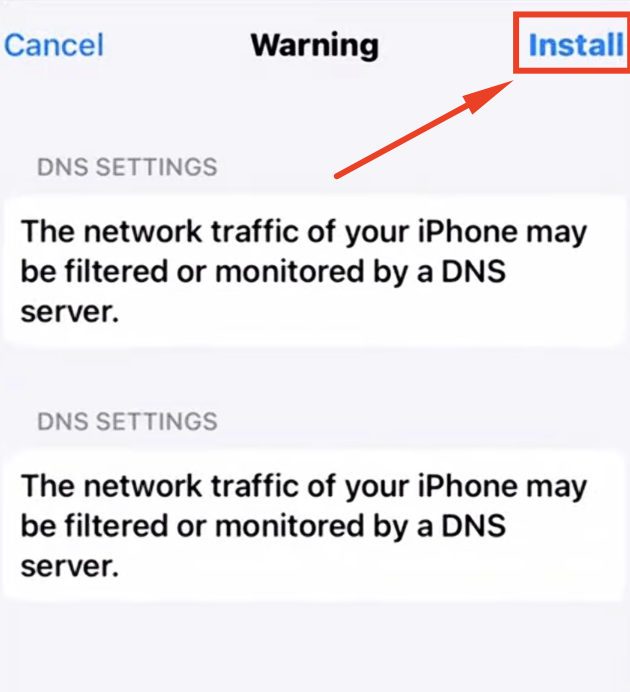
- Tap any Download link
- Wait for the installation to finish
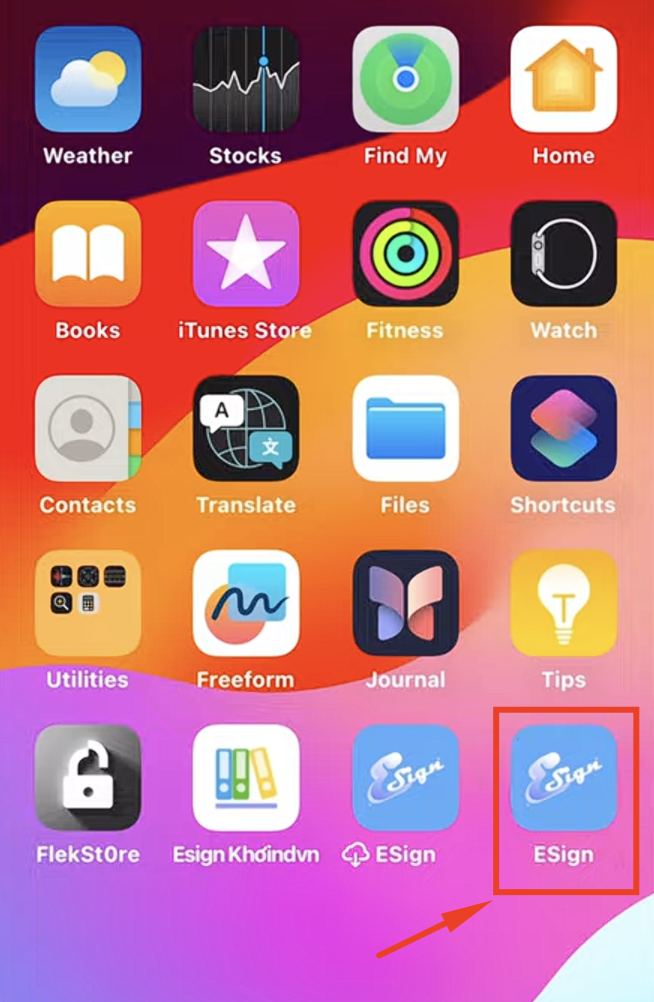
- Open Settings
- Go to General > VPN & Device Management
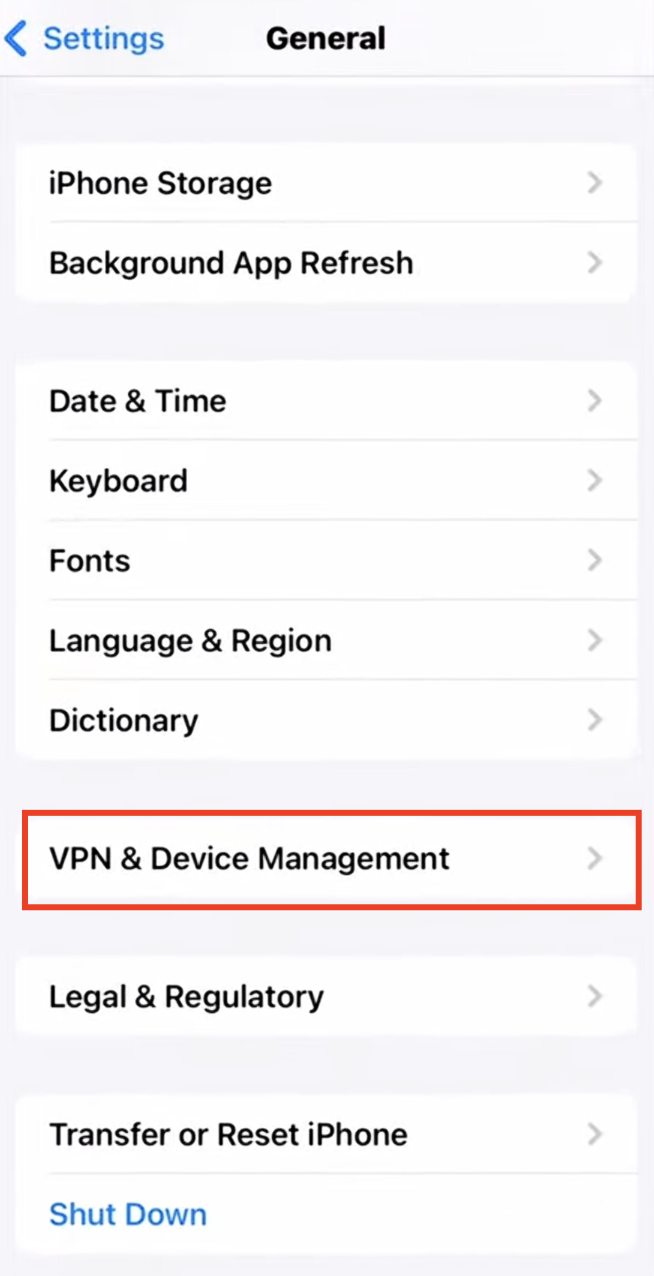
- Select ESign
- Tap Trust

- Tap Trust again
The app is now trusted.
Step 4: Import the Certificate
Esign needs a valid certificate to sign apps.
Steps:
- Open the same website again
- Tap Download Certificate
- Open the ESign app
- Tap the three dots

- Select Import
- Choose the certificate file
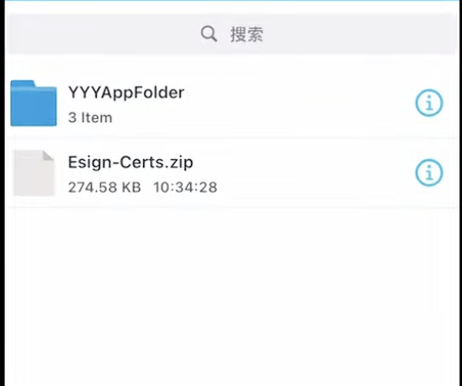
- Tap the file and select Unzip
- Open the extracted folder

- Find the certificate matching the ESign link
- Tap Import
Certificate setup is complete.
Step 5: Install IPA Files
After certificate import:
- Open ESign
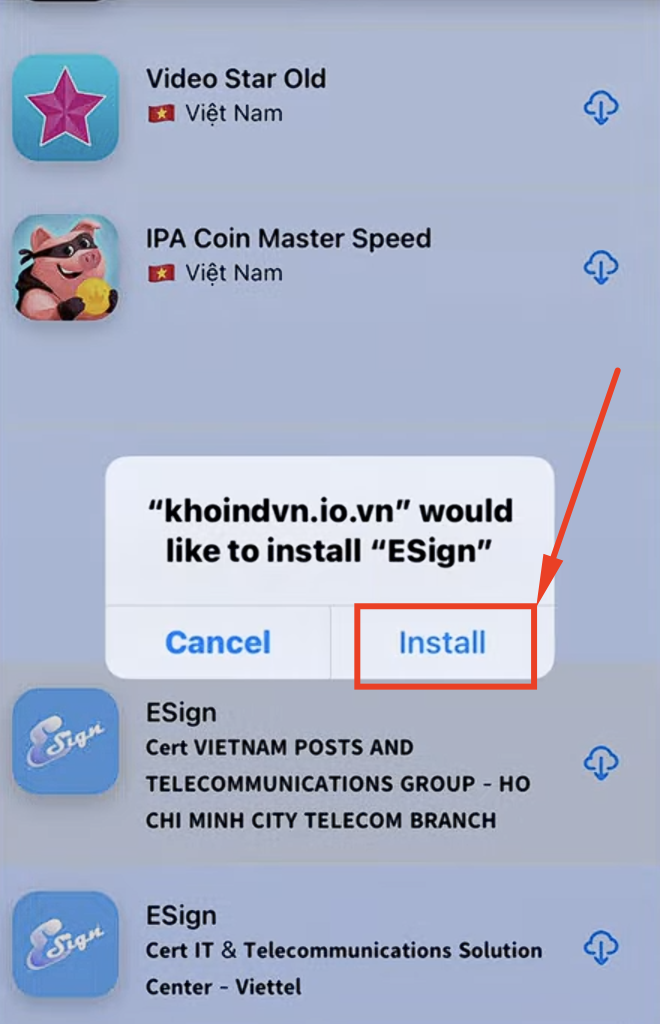
- Import any IPA file
- Sign in and install the app normally

Apps should now open without crashing.
Extra Fix: Prevent Crashes After Restart
Some users face crashes after restarting the iPhone.
Reason:
During boot, iOS connects to Apple servers before DNS blocks activate.
This can revoke the certificate instantly.
Solution:
- Enable Airplane Mode before shutdown
- Disable Auto-Join Wi-Fi
- Avoid mobile data during boot
- Keep the DNS profile installed
This reduces revocation risk.
Common Issues and Fixes
App closes instantly
- The certificate is revoked
- Reinstall Esign and profiles
“Untrusted App” message
- Go to VPN & Device Management
- Tap Trust
Apps crash, but Esign opens
- The IPA file may be broken
- Try another IPA source
Works on one iPhone but not another
- Different iOS behavior
- Device boot network leak
Frequently Asked Questions
Q - Why do Esign-signed apps crash on start?
Apple revoked the certificate used to sign them.
Q - Can DNS blocking fully stop revokes?
No. DNS helps, but iOS trust services may bypass it.
Q - Does VPN Help?
Sometimes it causes issues. Turn it off if crashes happen.
Q - Is reinstalling enough?
Yes, if you also install a fresh certificate.
You can also check out – How to Fix ESign No Longer Available Error (STEPS, 2026).
Conclusion
Esign app crashes happen due to revoked certificates. The fix requires removing old profiles and installing a new certificate.
- Always block internet access during device reboot.
- Keep DNS active to reduce revocation risk.
If crashes continue, repeat the process with a new certificate. Thank You.