Fix “Integrity Could Not Be Verified” Error on iPhone (ESign iOS): Many iPhone users face the “App cannot be installed because integrity could not be verified” error while installing ESign or similar apps.
This guide explains the exact steps that fix the issue in most cases.

Follow the steps in order.
What Does “Integrity Could Not Be Verified” Mean on iOS?
This error means iOS cannot confirm the app certificate.
iOS blocks the app to protect the device.
Common causes include:
- Expired or revoked certificate
- Untrusted developer profile
- DNS blocking Apple servers
- Active VPN or profile conflict
- Corrupted install file
Before You Start
Make sure you have:
- Stable Wi-Fi connection
- Safari browser
- Latest available iOS update
Avoid public Wi-Fi during installation.
Don’t miss –
How to Fix ESign No Longer Available Error (STEPS)
Step 1: Delete the App Completely
Remove the failed install first.
- Press and hold the app icon
- Tap Remove App
- Tap Delete App
- Confirm deletion
This clears broken install data.
Step 2: Restart Your iPhone
Restart refreshes system checks.
- Press the Power button
- Slide to power off
- Wait 20 seconds
- Turn the device back on
Do not skip this step.
Step 3: Set Date and Time Automatically
Wrong time blocks for certificate checks.
- Open Settings
- Tap General
- Tap Date & Time
- Enable Set Automatically
Step 4: Disable VPN and Profiles
VPNs block verification servers.
- Open Settings
- Tap VPN
- Turn VPN Off
If profiles exist:
- Open Settings
- Tap General
- Tap VPN & Device Management
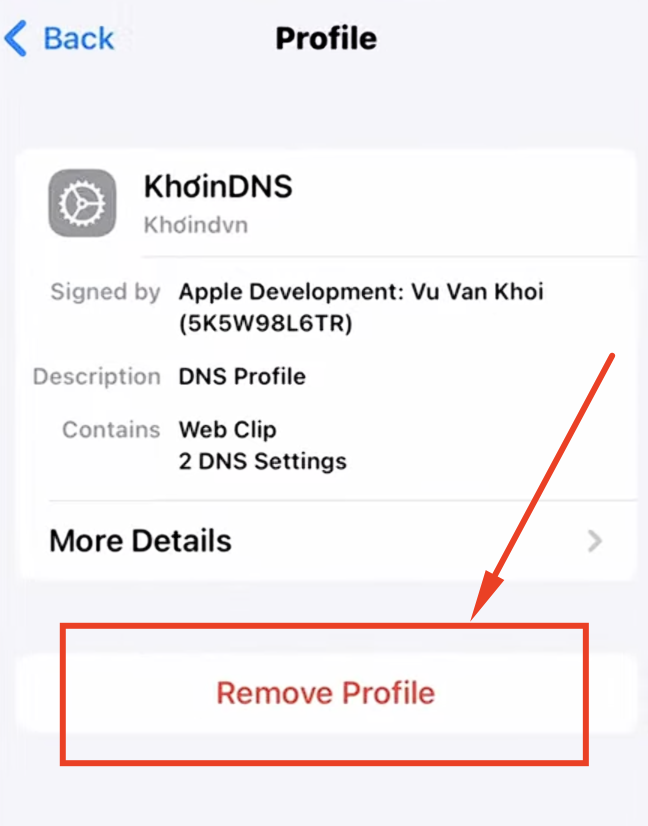
- Remove unknown profiles
Step 5: Change DNS Settings (Very Important)
DNS issues cause most failures.
- Open Settings
- Tap Wi-Fi
- Tap the ⓘ icon
- Tap Configure DNS
- Select Manual
- Remove all existing DNS entries
- Add this DNS only:
8.8.8.8
- Tap Save
- Reconnect to Wi-Fi
Step 6: Install eSign Again Using Safari
Use Safari only.
- Open Safari
- Visit the official eSign source
- Tap Install
- Wait until install completes
Do not switch apps during install.
Step 7: Trust the App Developer
After install:
- Open Settings
- Tap General
- Tap VPN & Device Management

- Select the developer profile
- Tap Trust
- Confirm trust

Then open the app.
Step 8: Update iOS to the Latest Version
Older iOS versions fail certificate checks.
- Open Settings
- Tap General
- Tap Software Update
- Install available updates
- Restart the device

Step 9: Reset Network Settings (If Needed)
If the error continues:
- Open Settings
- Tap General
- Tap Transfer or Reset iPhone
- Tap Reset
- Tap Reset Network Settings

This resets Wi-Fi, DNS, and network cache.
It does not delete data.
Common Mistakes That Cause This Error
Avoid these actions:
- Installing while VPN is active
- Using public Wi-Fi
- Skipping DNS reset
- Reinstalling without deleting first
- Using expired install links
If Nothing Works
As a last option:
- Reset the device
- Install eSign again
- Use a fresh certificate source

This fixes deep system blocks.
Quick Fix Checklist
- Delete the app
- Restart the device
- Enable automatic date and time
- Disable VPN
- Change DNS to 8.8.8.8
- Install using Safari
- Trust the developer
- Update iOS
- Reset network settings
Also, check out –
How to Fix ESign App Crashing on iPhone (STEPS)
Frequently Asked Questions (FAQs)
iOS cannot verify the app certificate. This happens when Apple revokes the certificate, blocks the network request, or does not trust the developer profile.
Yes. Apple revokes enterprise certificates regularly. When this happens, the app fails to install even if it worked before.
Yes. Many users report success after switching DNS to 8.8.8.8. This helps iOS reach Apple verification servers without blocks.
The app installs but remains untrusted. You must go to Settings → General → VPN & Device Management and trust the developer profile.
Yes. VPNs often block or reroute Apple validation requests. Disable VPN before installing the app.
Yes. Older iOS versions fail certificate checks more often. Updating iOS improves installation success.
Apple applies certificate checks per device and network. DNS, profiles, or cached data can differ between devices.
Wait for a new certificate release or reset network settings. If the issue persists, a full device reset may be required. Q - Why does eSign show “Integrity could not be verified” on iOS?
Q - Does Apple revoke eSign certificates often?
Q - Does changing DNS really fix the issue?
Q - Why does the app install but not open?
Q - Can VPN cause the integrity error?
Q - Does this issue depend on iOS version?
Q - Why does the same app work on another iPhone?
Q - What should I do if no certificate works?
Final Thoughts
This error happens due to Apple verification limits. Most users fix it by DNS change + profile trust.
Follow each step carefully for the best results.