Are you facing the “ESign no longer available” error? This article explains the cause and provides clear steps to fix the issue.
What Is ESign
ESign is an app. The app allows users to sideload apps that are not listed on the App Store.
Why ESign No Longer Available Error Occurs
This error happens for these reasons:
-
Apple expired the certificate used to install ESign.
-
Apple cancelled the certificate used by ESign.
-
The certificate provider has server issues.
-
The certificate provider stopped service.
When this happens, iOS blocks the app from opening.
How to Fix the ESign No Longer Available Error
Step 1: Remove the Current ESign App
-
Open Settings.
-
Tap General.
-
Tap iPhone Storage.
-
Select ESign.
-
Tap Delete App.
Step 2: Remove the Old Profile
-
Open Settings.
-
Tap General.
-
Tap VPN & Device Management.
-
Select the ESign profile.
-
Tap Remove Profile.
If you are looking for the latest version of the ESign app, please check the guide below.
Step 3: Install ESign Again
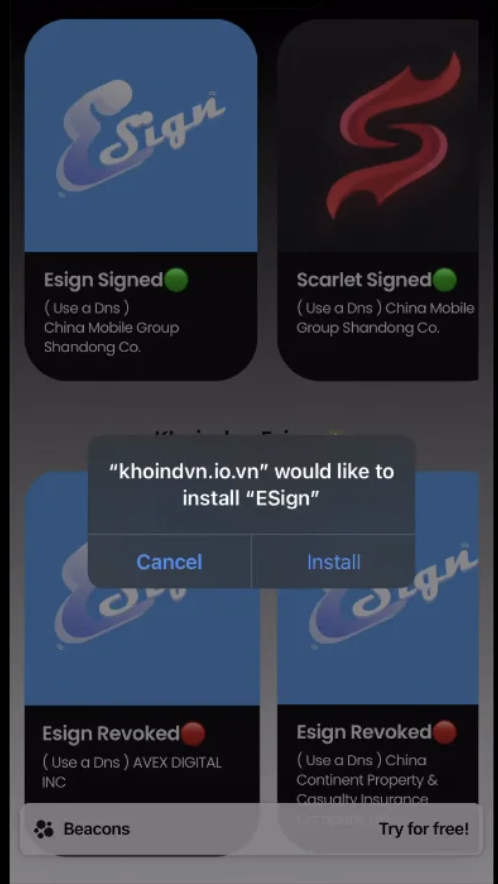
Install the DNS Profile –
- Open the web browser.
- Go to https://khoindvn.io.vn/.
- Tap Install DNS.
- Wait for the profile to download.
- Open the Settings app.
- Tap Profile Downloaded.
- Select the downloaded profile.
- Tap Install.
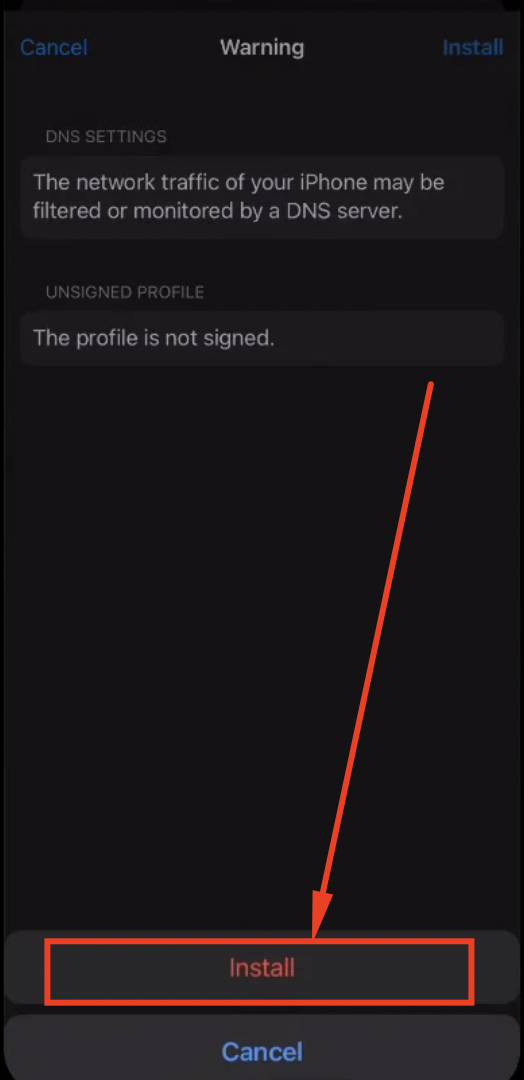
- Tap Install again to confirm.
This step installs the DNS profile.
Install the ESign App –
- Open the web browser.
- Visit the same website.
- Tap Install ESign.
- Wait for the app to install.
- Open the Settings app.
- Go to General.
- Tap VPN & Device Management.

- Select the ESign app profile.
- Tap Trust.
- Tap Trust again to confirm.

This step allows iOS to run the app.
Import the Certificate in ESign
- Go back to the website.
- Tap Download Certificate.
- Wait for the certificate file to download.
- Open the ESign app.
- Tap the three dots at the top.
- Open the Menu.
- Tap Import.
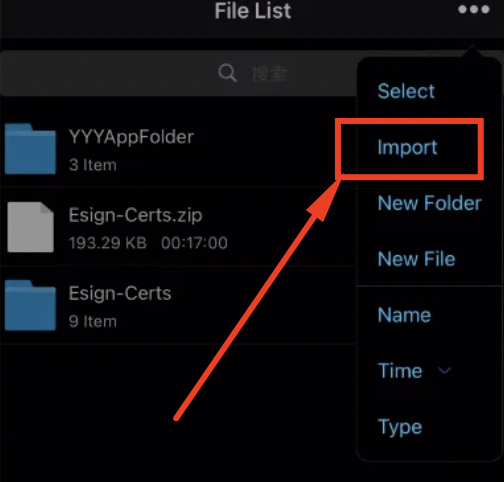
- Select the downloaded certificate file.
- Tap Unzip.

- Open the new folder.
- Select the certificate file.
- Import the certificate.
This step links ESign with a valid certificate.
Step 4: Trust the New Certificate
-
Open Settings.
-
Tap General.
-
Tap VPN & Device Management.
-
Select the new developer profile.
-
Tap Trust.
-
Confirm the action.
Step 5: Open ESign
-
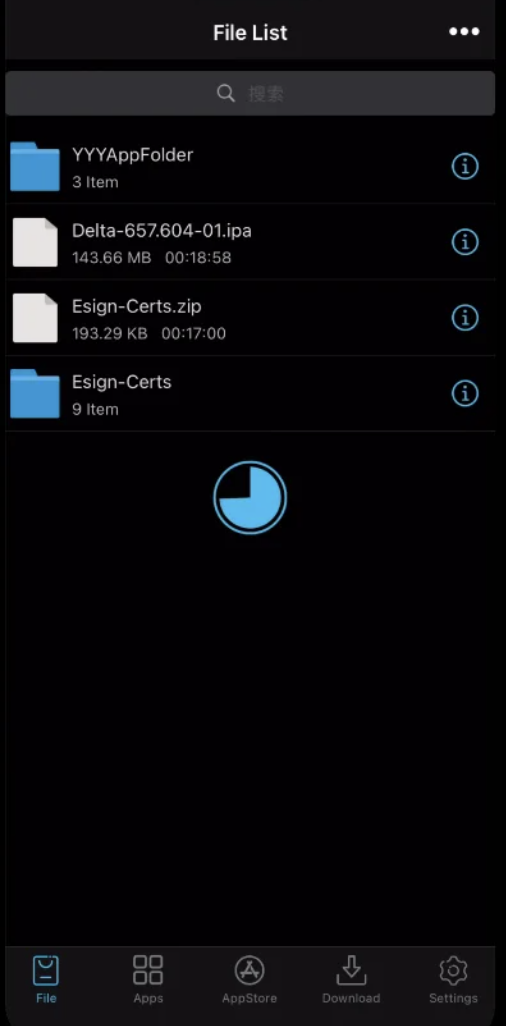
Open the ESign app.
-
Check if the app launches without error.
If the Error Still Appears
-
Wait for a new certificate release.
-
Try a different signing service.
-
Check the provider status page for outages.
Frequently Asked Questions
Q - Why does the ESign app stop working?
The application stops working if the certificate is not valid or due to a change in Apple’s rules.
Q - How to fix ESign No Longer Available Error?
You can follow a few steps: first, install the DNS profile, download the application again, and import a new certificate from the official website.
Q - Why do we see ESign No Longer Available error?
The error can be seen because either the certificate permission has expired or has been cancelled by Apple.
Q - How to trust the ESign application on my device?
1. Open Settings. 2. Open General. 3. Tap VPN & Device Management. 4. Select the ESign App. 5. Tap Trust. 6. Tap Trust again to confirm.
Q - How do I import the certificate into the app?
1. Open the ESign app. 2. Tap the three dots at the top. 3. Tap Import. 4. Select the downloaded certificate file. 5. Unzip the file. 6. Import the certificate into the app.
Summary – Fixed ESign No Longer Available Error
- The error occurs due to certificate problems.
- Installing the DNS profile helps access the service.
- Reinstalling ESign restores app trust.
- Importing the certificate fixes signing issues.
These steps resolve the error in most cases. Thank You.
i use it once a week when i’m in my firetruck.